Check CPU and BIOS support: exact model, minimum version and update method
A shared socket is one requirement. Before ordering a CPU, find the exact motherboard support entry, minimum firmware version and a supported way to obtain it. Unknown shipped BIOS is still unknown; an update method available on one board does not establish that another board can use it.
Research and writing prepared with AI assistance. Research-based guidance; no site-owned hardware testing is claimed.
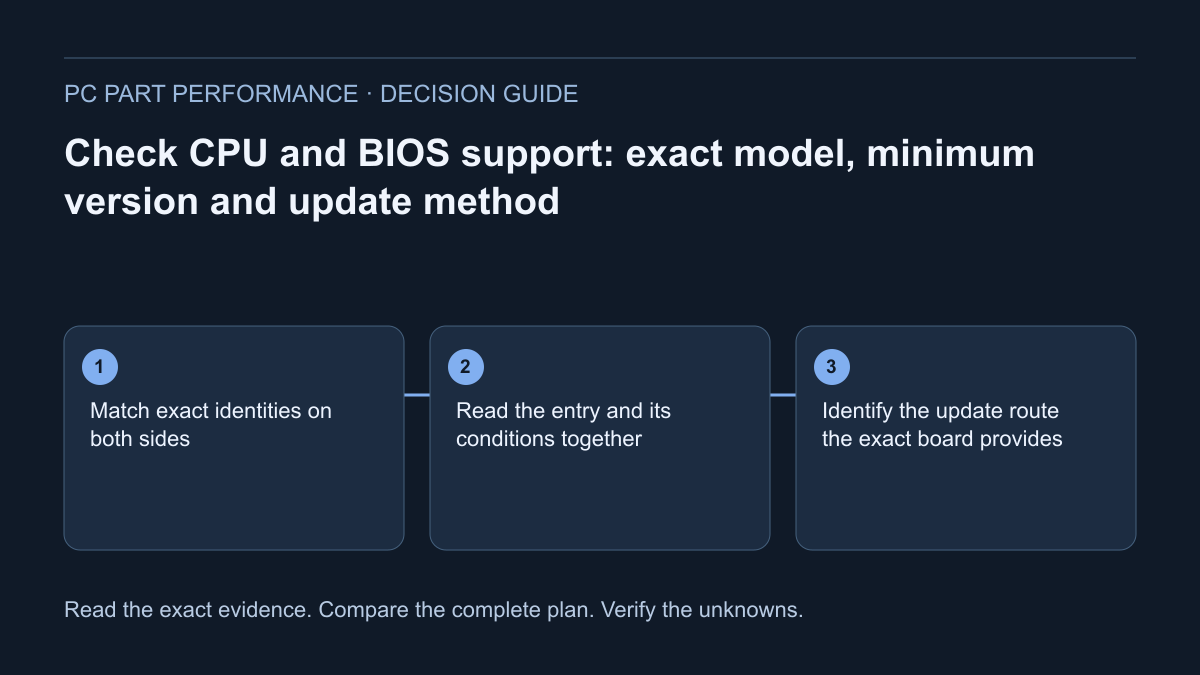
Match exact identities on both sides
Record the full processor model and the motherboard model, edition and hardware revision. Similar names can describe different products. A Wi-Fi version, a MAX designation or a board revision must not be silently merged with the model in a support guide. Keep the original page and record identifiers so another reader can repeat the lookup.
ASUS documents locating CPU and memory support resources for the exact board. Use that manufacturer route or the corresponding official route for your board brand. A retailer sentence saying “supports Ryzen” or “AM5” is not the CPU-specific support entry. If the exact board cannot be identified, resolve the product identity before choosing a firmware file.
Read the entry and its conditions together
Find the selected processor in the applicable CPU-support list. Preserve the listed minimum BIOS version, any revision notes and the context that makes the row apply. Read relevant update notes as well. Do not copy only the minimum number and discard a prerequisite or board-specific procedure.
Record the installed version from a supported firmware interface if the machine currently works. For a board being purchased, obtain credible shipped-version evidence from the seller where available. If it cannot be established, the useful state is “installed version needs verification.” The absence of a known conflict is not evidence that the CPU will be recognized on first startup.
Identify the update route the exact board provides
MSI’s M-FLASH instructions describe entering the supported firmware interface and selecting the correct model’s official file. ASUS USB BIOS FlashBack documentation describes a different supported feature with its own model, filename, port and completion requirements. These methods are not interchangeable generic instructions.
Ask whether the planned route is usable with the hardware you have now. A board that must reach firmware with the currently installed CPU presents a different preparation problem from one with a documented CPU-independent feature. Do not assume a rear button, a forum filename or another board’s video proves support. If the required route is unavailable, ask the manufacturer or seller about a supported preparation service.
MSI — How to update BIOS · ASUS — How to use USB BIOS FlashBack
Protect the files and recovery access before changing firmware
Back up needed data and preserve legitimate recovery access where encryption is used. Microsoft explains that a security or hardware change can prompt for a BitLocker recovery key. Store that key privately through the owner-controlled method; never include it in a shared build or support screenshot posted publicly.
The firmware procedure may also require preparing a USB device. Follow the exact instructions and protect that device’s existing contents before formatting or writing to it. Keep the download page, selected file and relevant instructions together. Do not obtain firmware from an unofficial mirror or guess a file because its name looks close to the board you own.
Microsoft — Find your BitLocker recovery key · MSI — How to update BIOS
Do not interrupt the documented process
MSI explicitly warns against powering off, removing external power or removing the USB drive during its update. Follow the exact procedure’s completion behavior instead of deciding that an unfamiliar indicator must be stuck. This guide does not supply a universal update duration, recovery shortcut or instruction to force a restart.
After the supported process completes, verify the recorded version and the intended basic configuration. Preserve what changed and investigate unexpected recognition before enabling optional performance settings. A successful update resolves a firmware step; it does not certify memory profiles, cooler mounts, storage topology or the rest of the build.
Carry a small evidence record into the builder
Use the worksheet below when sharing a proposed CPU/board combination. Each field has a different basis: a source statement, an observed value or a remaining question. Unknown fields should stay visible. Recheck the record if either component or board revision changes.
The standalone compatibility workflow can help organize the known socket and support questions. Its output must remain narrower than a whole-build guarantee. If you cannot establish an essential support or update requirement, choose a better-documented alternative or obtain model-specific help before purchasing.
| Record | Evidence basis | If it is missing |
|---|---|---|
| CPU and board/revision | Exact labels and official model pages | Resolve identity |
| Minimum BIOS | Applicable CPU-support row and notes | Ask manufacturer; do not infer |
| Installed or shipped BIOS | Observed version or credible seller evidence | Mark needs verification |
| Usable update route | Exact board procedure and available hardware | Resolve preparation before ordering |
| Post-update recognition | Observed firmware state | Continue safe investigation |
Apply this to your PC
Sources and scope
- ASUS — How to query CPU and memory support lists
Locate the exact board and applicable CPU/memory support resources. Method guidance does not establish a minimum BIOS version for an unspecified board. Source inspected 2026-10-13.
- MSI — How to update BIOS
Exact-model official download and M-FLASH procedure; protect USB contents and do not interrupt the update. Use the exact board instructions. This is not a generic firmware file or a universal recovery method. Source inspected 2026-10-13.
- ASUS — How to use USB BIOS FlashBack
Check feature support; follow model-specific file naming, port, power and completion instructions. Do not transplant this procedure to a board without the feature or to MSI M-FLASH. Source inspected 2026-10-13.
- Microsoft — Find your BitLocker recovery key
Recovery access after relevant security or hardware changes; preserve the legitimate recovery key. A key is sensitive. Do not paste it into site forms, shared builds or analytics. Source inspected 2026-10-13.