An update followed by a symptom is a useful clue, not proof of the cause. Record the current version and use the manufacturer and operating-system instructions for your device.
Record the setup before changing it
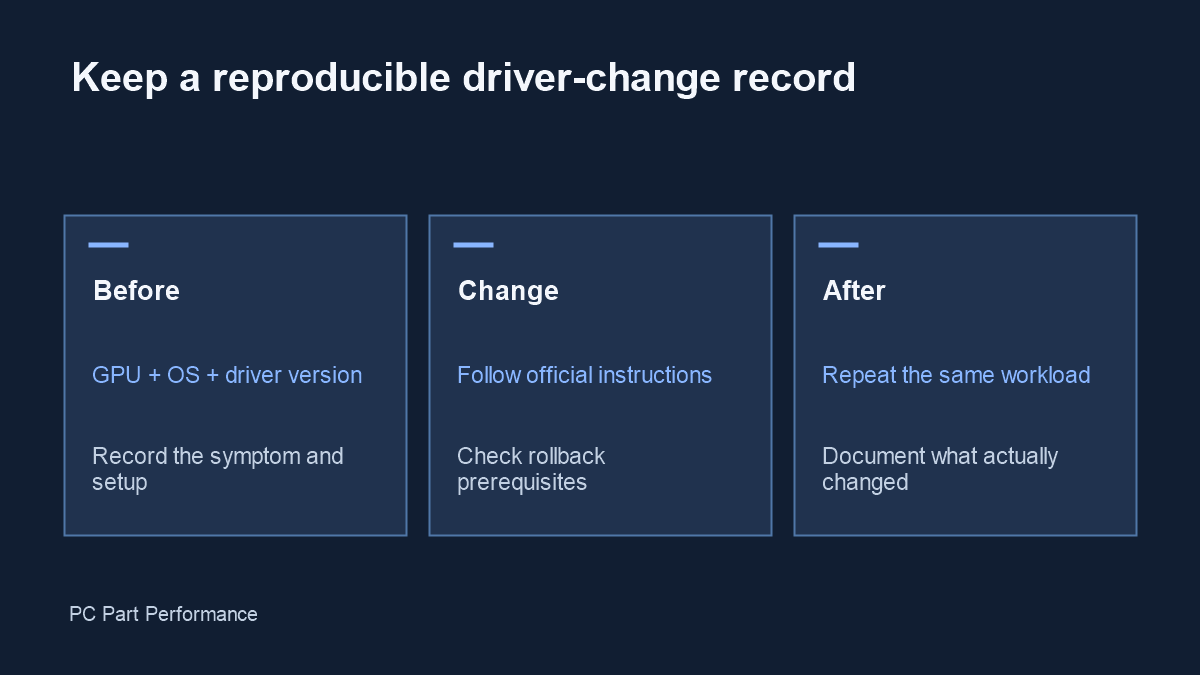
Write down the exact GPU, operating-system version, driver version and the application that shows the problem. Record when it occurs: at startup, in one game, on a second monitor or only after resuming sleep. A description such as the newest driver is difficult to reproduce later because the version it refers to changes.
If you can safely capture the error message or a screenshot, keep it with those notes. Do not publish account identifiers or private desktop content in a public issue. A useful support report narrows the conditions without claiming that every user of the driver has the same fault.
Check the rollback prerequisites
Microsoft’s display-troubleshooting instructions describe Device Manager rollback after a Windows Update. The action requires administrator permissions. If the rollback option is unavailable, Windows does not have a previous driver available for that operation. Do not describe an unavailable button as a successful rollback.
The instructions also distinguish updating and uninstalling a device driver. Read the procedure appropriate to your device and symptom before acting. This article does not perform those actions, bypass permissions or recommend downloading a driver from an unverified mirror.
Source: Microsoft — Troubleshoot screen flickering in Windows.
Choose a driver for your actual workflow
NVIDIA distinguishes Game Ready and Studio driver programs by their intended testing and release focus. That description is not a claim that one branch is always faster or that an individual release fixes your exact problem. Read the release notes and supported-product list for the version you intend to install.
A laptop can also have manufacturer-specific graphics and power behavior. Check its support page as well as the GPU vendor’s documentation. Record any version change so you can describe what was actually tested rather than mixing results from several updates.
Change one variable and test again
Use the same application, scene and display arrangement before and after a change. Keep other settings stable where possible. If the symptom disappears, record the result as a result for that setup; it does not establish a universal explanation.
Do not add an unsupported FPS uplift to a driver article or relabel an old release as current. A maintained release report needs an exact version, source publication date, known issues, affected products and a material update history. Those fields are separate from this evergreen troubleshooting checklist.
Evidence and updates
Sources checked October 4, 2026. Manufacturer statements are specifications, not our measurements. Material corrections appear in the data changelog.
- Troubleshoot screen flickering in Windows — driver rollback prerequisites; symptoms are not proof of cause
- Game Ready and Studio driver explanation — driver audience and release focus; historical explanation