First boot for a new PC: a safe checklist from power-on to a working baseline
Before installing software or enabling performance profiles, establish that the machine starts, recognizes the intended components and uses a documented configuration. Keep the exact manuals and a short observation log. First boot is a verification sequence, not a race to change every BIOS option.
Research and writing prepared with AI assistance. Research-based guidance; no site-owned hardware testing is claimed.
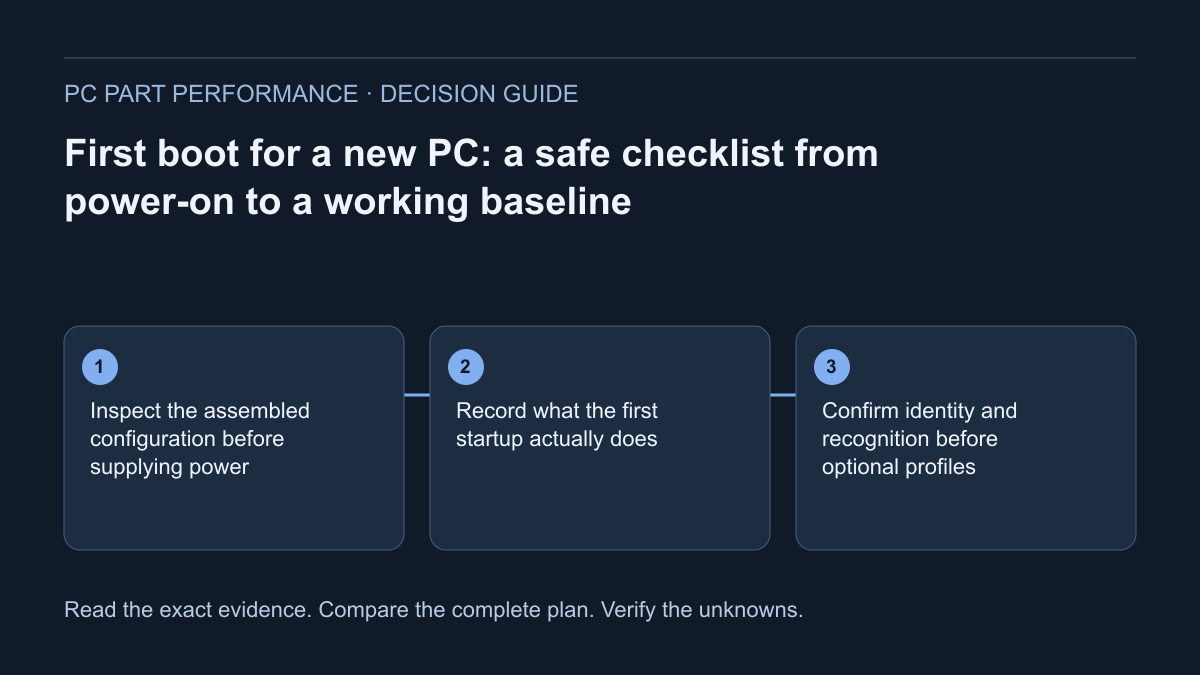
Inspect the assembled configuration before supplying power
Keep the exact board, CPU, cooling, memory, GPU, storage and PSU list beside the machine. Confirm required connections and installation against the component manuals while external power is removed. Check the intended display output and monitor input. Retain CPU cooling for every startup attempt; do not improvise a powered test with incomplete cooling.
Verify modular cables from the applicable PSU documentation rather than by plug shape. If any connection or procedure is uncertain, resolve it before the first attempt. The builder can preserve documentary checks and unknowns, but a green software result does not inspect the physical assembly. A careful pause here is more useful than starting and then changing several suspected items at once.
CORSAIR — PSU cable compatibility explainer · MSI — Motherboard boot and no-display checks
Record what the first startup actually does
Observe the monitor, fans and printed diagnostic labels. The exact board documentation determines how startup indicators and initialization should behave. Do not borrow a universal waiting period or a color meaning from an unrelated motherboard. Record whether you reached the firmware screen and which persistent indication, if any, remained.
If there is no display, use the diagnostic flow to check the external display path first, then the documented support and assembly questions. A persistent LED chooses an investigation branch; it does not prove that a part is defective. Change one thing, record the result, and stop before an internal procedure you cannot perform safely.
Confirm identity and recognition before optional profiles
In the supported firmware interface, record the recognized CPU, memory capacity, relevant storage devices and firmware version. Compare these observations with the parts you intended to install. A boot entry, a detected drive and a Windows drive letter are different things. Unexpected recognition deserves investigation before adding software or performance changes.
Keep optional memory profiles and other tuning separate from this baseline. AMD describes EXPO as overclocking-profile technology; its presence on a kit does not prove every configuration supports that advertised setting. Follow the board and kit instructions only after ordinary recognition and setup work. Preserve the baseline values so a later symptom can be tied to a specific change.
Prepare the supported operating-system installation
Choose the operating system you intend to use and consult its current official requirements. For Windows 11, check the applicable processor, firmware/Secure Boot capability and TPM requirements through Microsoft’s documentation. Do not treat bypassing security requirements as a generic performance or first-build tip.
Microsoft’s media-creation instructions state that the chosen USB drive’s contents are deleted. Select a suitable blank device and protect existing files before creating the installer. Canonical provides an official Ubuntu Desktop installation path if that is your choice; linking that path does not establish Linux support for every device in your build. Read storage-selection prompts carefully and never erase an uncertain disk.
Microsoft — Windows 11 requirements · Microsoft — Create Windows installation media · Canonical — Install Ubuntu Desktop
Install official support software and verify the ordinary task
Use the exact hardware and operating-system support pages for drivers and firmware information. A generic driver-updater advert is not the same source. Record the versions that matter to the task rather than claiming a universal best driver. Leave a working baseline intact unless a documented requirement or fix makes a change relevant.
Verify a small set of ordinary actions: stable startup, the intended display mode, network access where required, expected storage and an application you actually use. No single successful launch proves every component healthy, but it gives a clearer baseline than an unrecorded collection of tweaks. Preserve the complete observations and any unresolved support question.
Save recovery access and the finished first-boot record
If device encryption or BitLocker is used, preserve the legitimate recovery key through the documented owner-controlled method. Microsoft explains that security or hardware changes can trigger a recovery request. A recovery key is sensitive; do not paste it into a public parts list, a troubleshooting form or analytics.
Mark completed Build School steps and save or print the checklist. Keep component identities, firmware and driver notes, recognition observations and the next unresolved check together. This article describes a supported process, not a claim that the site assembled or tested your machine. A successful first boot is the start of a documented working PC, with optional changes evaluated one at a time.
Apply this to your PC
Sources and scope
- CORSAIR — PSU cable compatibility explainer
Modular cable compatibility must come from the applicable manufacturer documentation. Scope is CORSAIR’s documented families; do not apply its type names to other brands. Source inspected 2026-10-13.
- MSI — Motherboard boot and no-display checks
Display-path, support, memory and diagnostic-indicator investigation. Guidance is conditional on the exact motherboard and installed components; no failed component is diagnosed by this article. Source inspected 2026-10-13.
- AMD — EXPO memory profiles
EXPO is memory overclocking profile technology for supported AM5 configurations. A profile is not proof of operation on every board/CPU/module configuration. Source inspected 2026-10-13.
- Microsoft — Windows 11 requirements
Compatible processor, firmware/Secure Boot capability and TPM requirements. Requirements are not a performance guarantee; no bypass is recommended. Source inspected 2026-10-13.
- Microsoft — Create Windows installation media
Official media creation, supported download and deletion of the selected USB contents. Media creation and operating-system installation are separate operations; protect existing data. Source inspected 2026-10-13.
- Canonical — Install Ubuntu Desktop
Official supported installation workflow and storage-selection precautions. Linux compatibility for an exact device is not established merely by linking the installer. Source inspected 2026-10-13.
- Microsoft — Find your BitLocker recovery key
Recovery access after relevant security or hardware changes; preserve the legitimate recovery key. A key is sensitive. Do not paste it into site forms, shared builds or analytics. Source inspected 2026-10-13.