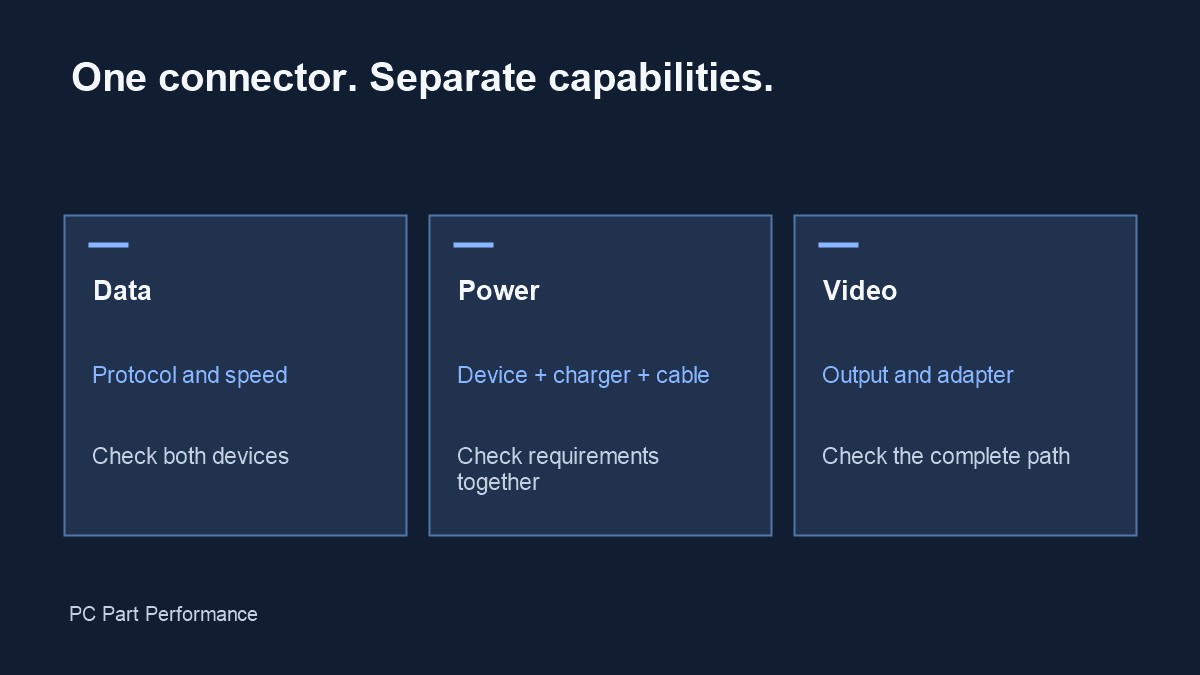
USB-C describes a connector. Check data protocol, power support and display capability separately on both devices and the cable.
Start at both ends of the connection
Write down the exact source device and destination device. Identify the port you will use, rather than assuming every port on a laptop or motherboard has the same capabilities. Then look for an explicit data-speed specification, a power statement and a video-output statement. A connector drawing alone cannot answer all three questions.
USB-IF’s language guidance distinguishes USB Type-C from USB Power Delivery and USB data performance. A product can use the same connector shape while supporting a different combination of features. Treat a missing statement as a question to resolve, not permission to assume the highest advertised capability.
Why two phones can behave differently
Apple lists USB 2 up to 480 Mb/s for iPhone 16 and USB 3 up to 10 Gb/s for iPhone 16 Pro. The faster mode on the Pro requires a compatible cable. These are interface maxima, not a measured guarantee for your file transfer. Storage, file sizes, application behavior and the receiving device still matter.
This is a concrete reason to check the technical specifications even when two devices both have USB-C. It is not a general ranking of the phones or a battery-charging comparison. The same habit applies to docks, external SSDs and monitors.
Source: Apple — iPhone 16 specifications; Apple — iPhone 16 Pro specifications.
Buy for the task you need
For a storage cable, prioritize a stated data capability and connector compatibility. For charging, confirm the charger, cable and device requirements together. For a display, verify the source’s supported display output, the adapter’s conversion and the monitor input. A dock introduces another device with its own limits.
Keep the manufacturer’s model code or certification information with the purchase. Marketing phrases such as fast or professional are not a complete specification. When a listing omits a necessary feature, ask the seller for an exact documented answer or choose a listing that provides one.
Diagnose a slow or missing connection
Change one part at a time: cable, port, hub and destination. Avoid replacing everything at once, because you lose the evidence that isolates the fault. Check whether the device works when connected directly. Record the operating-system message and the exact setup for a support request.
Do not infer a cable’s capability from its thickness or price. The useful test is whether the documented combination supports your task and behaves consistently in it.
Evidence and updates
Sources checked October 4, 2026. Manufacturer statements are specifications, not our measurements. Material corrections appear in the data changelog.
- USB Type-C language guidelines — connector versus protocol
- iPhone 16 specifications — body dimensions; display; chip; USB
- iPhone 16 Pro specifications — body dimensions; display; chip; USB