Choose a monitor target: verify the output path, refresh rate and game evidence
Check three different questions: whether the display connection supports the intended mode, whether the operating system is using it, and whether the game can produce useful frames at your chosen settings. A monitor’s maximum refresh rate answers none of the other questions on its own.
Research and writing prepared with AI assistance. Research-based guidance; no site-owned hardware testing is claimed.
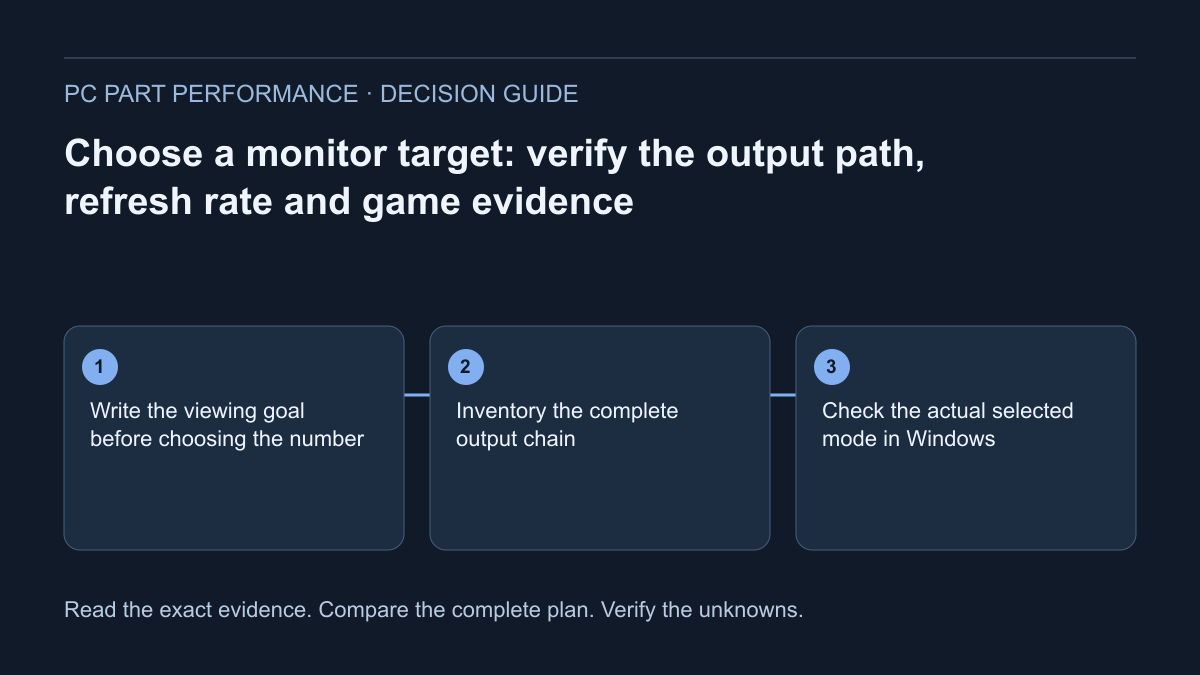
Write the viewing goal before choosing the number
List the games or applications, viewing distance, desk space, preferred screen size and the resolution you intend to use. A goal such as clearer text on a larger screen is different from smoother competitive play. You can compare those goals without declaring one refresh rate or resolution the universal correct choice.
Use the pixel-density calculator to compare screen geometry with explicit size and resolution inputs. Its result describes pixel density, not motion handling, brightness, color accuracy or game performance. Keep physical requirements beside the numbers: stand depth, supported mounting and space for the setup. A technically capable display is not a useful purchase if it does not suit how you work or play.
Inventory the complete output chain
Write the exact graphics device, output port, cable, adapters or dock, and monitor input. Check the manufacturer’s supported resolution/refresh combinations for that path. Matching connector shapes do not document every mode. If a dock is involved, its own specification belongs in the record; do not silently apply the graphics card’s direct-output claim to the whole chain.
VESA’s cable guidance emphasizes connector matching and appropriate certification. Its older examples are not a current universal bandwidth table, so this guide does not borrow them as limits for new hardware. Preserve the exact cable identification and applicable specification instead of shopping by a vague “gaming” label. Remove an unnecessary intermediary for a supported direct test when practical.
Check the actual selected mode in Windows
Microsoft documents Advanced Display as the place to inspect the selected monitor’s resolution and refresh rate and choose among supported rates. With several displays connected, select the intended display first. Some available rate choices may change the resolution; preserve both values rather than recording the refresh number alone.
Keep a screenshot or written record of the active mode alongside the proposed target. If the target is unavailable, investigate the exact output path and manufacturer support before assuming the monitor or GPU is defective. A detected mode is evidence about the connection and settings. It still does not establish rendered game FPS or measure the time from your input to the final visible response.
Use frame intervals for context, not a latency promise
The ideal interval for a regular refresh cadence is 1,000 divided by refresh rate in Hz. At 60 Hz that is approximately 16.67 ms; at 144 Hz, 6.94 ms; at 240 Hz, 4.17 ms. Those are calculated intervals, not measured monitor response times, input latency or game frame times.
The frame-interval tool helps you see the scale of a stated cadence. A change in its output does not prove your game produces frames at that cadence or that the whole system becomes faster by the same amount. Keep the calculation labeled and separate from measured frame-time evidence. This prevents a clean numerical interface from overstating what the selected display can deliver.
| Refresh rate | 1000 ÷ Hz | What the calculation establishes |
|---|---|---|
| 60 Hz | 16.67 ms | Interval for a regular 60-per-second cadence |
| 144 Hz | 6.94 ms | Interval for a regular 144-per-second cadence |
| 240 Hz | 4.17 ms | Interval for a regular 240-per-second cadence |
Choose benchmark evidence that matches the intended play
Before using a game result, record its game version, hardware, resolution, quality preset and rendering features. A result with ray tracing or frame generation has a different meaning from one without those features. A short scene also cannot establish behavior throughout every map or session. Read the method before converting the number into a purchase recommendation.
Our performance evidence view should show whether a matching measured record exists. If it does not, say the result is unavailable or explicitly unvalidated rather than constructing a precise FPS from the screen size or a synthetic score. A requirements listing only establishes the publisher’s stated requirements. It does not demonstrate a target frame rate or guarantee that your preferred settings will feel satisfactory.
Compare complete goals and preserve the unknowns
Make a three-column decision record: connection support, active display mode, and relevant game measurements. Add the complete cost of any needed cable, adapter or graphics upgrade when actual quotes are available. If a task does not need a faster display, keeping the current setup should remain one of the alternatives.
Finish with a specific next action: verify one monitor input in its manual, inspect the active mode, or find a comparable game test. Open the display-goal and frame-interval tools with the same stated inputs. Save what is known and what remains uncertain. This revised guide connects those checks; it is not a display review, compatibility certification or a promise of better gaming latency.
Apply this to your PC
Sources and scope
- VESA / DisplayPort — Choose a DisplayPort cable
Connector matching and cable-certification considerations. The article contains older link-rate examples; no universal current maximum-mode claim is taken from it. Source inspected 2026-10-13.
- Microsoft — Change monitor refresh rate in Windows
Advanced Display, selected monitor and supported resolution/refresh combinations. A selected refresh rate is not measured game FPS or end-to-end latency. Source inspected 2026-10-13.